Reserving conference room A or B is as simple as "inviting" the room to your meeting. The room then responds with acceptance if it is available or denial of the request if it is not.
Add Room A or B to your outlook view so you can see available slots before reserving one
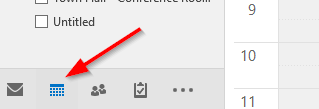
1) In Microsoft Outlook, click on calendar
2) right-click on "my calendars" -> add calendar -> from room list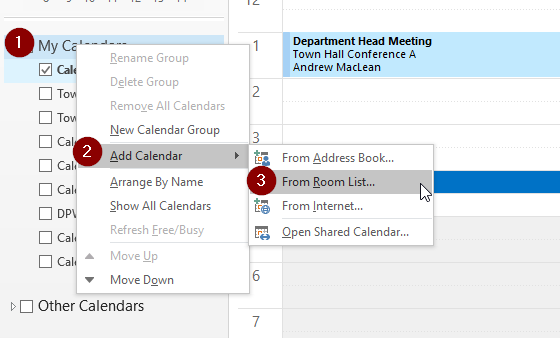
3) Double-click on Town Hall - Conference room A or B or both to select them and click OK
4) calendars will now be shown in your list of calendars, check them on if they are not automatically selected to see all of them
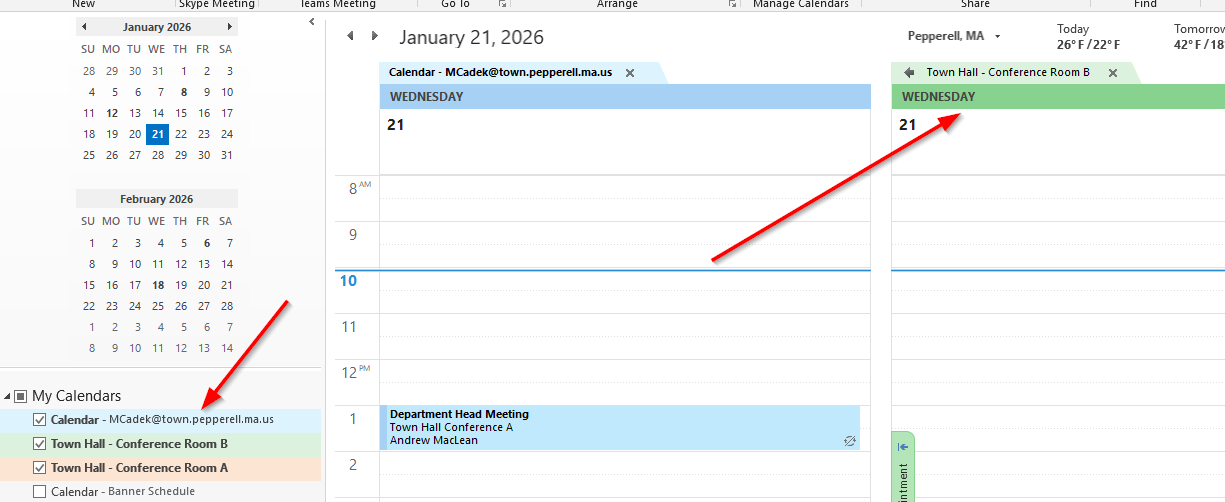
5) Done: you can now see what is already scheduled in those calendars
How to Reserve a Room
1) In Outlook, go to calendar
2) Choose to create a new meeting
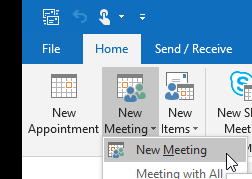
3) Fill out the Subject, Start/End Time.
4) Click the Scheduling Assistant option, then click Add Rooms... button
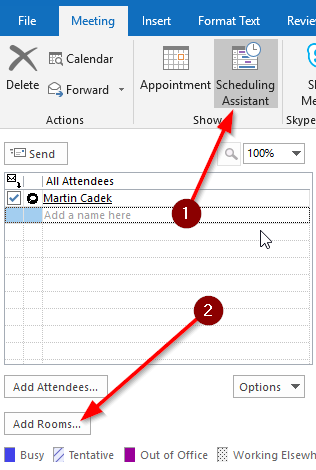
5) Pick the appropriate room (double-click to select it, then click OK)
6) Add additional attendees, if any.
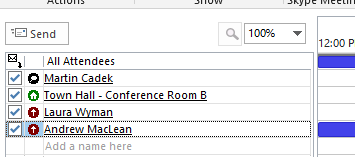
7) Click Send
8) Your attendees will receive the invitations and you will receive a reply from the Room accepting/denying your request. It will auto-accept if the slot is available.
Was this article helpful?
That’s Great!
Thank you for your feedback
Sorry! We couldn't be helpful
Thank you for your feedback
Feedback sent
We appreciate your effort and will try to fix the article