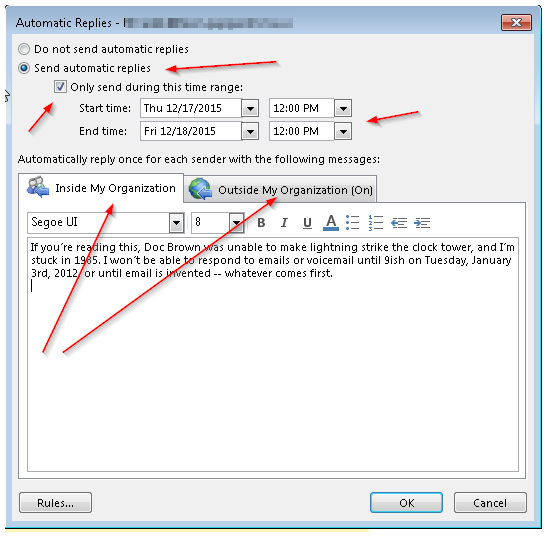
Out of office attendant will use your individual settings to reply to all internal (coworkers) , external (public) or both senders with a specific message which you have full control over.
Out of office can be configured both in Microsoft Outlook application (must be done while at work) OR if you need to set it remotely from home/elsewhere you may do so with Outlook Web App as well.
Instructions for Microsoft Outlook – Out of Office Message
1) Open Microsoft Outlook
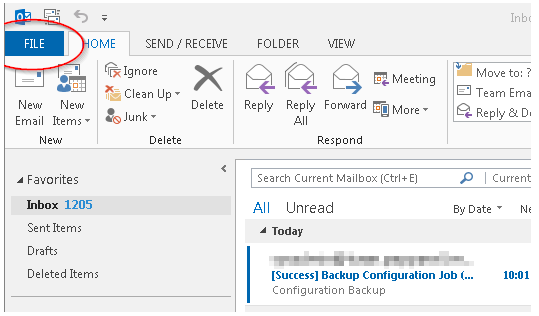
2) Click on File
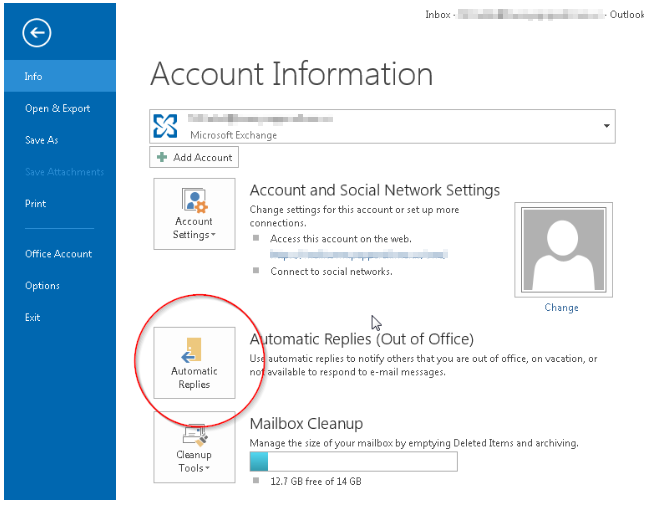
3) Choose “Automatic Replies (Out of Office)
3) Following screen is self explanatory, but you should:
- Enable the “send automatic replies” option
- Configure date/time range for your needs
- Choose whether you need internal, external or both replies
- If date/time range is not configured the OOO messages will send forever until disabled. Do so at your own risk!
- Type your messages (you may copy & paste the message for both inside/outside replies to keep them identical). Often times users prefer to have less informal replies go to coworkers (inside message) and more formal replies to outside contacts (residents/vendors etc..). This is completely up to you, but do not forget to click on both inside and outside and ensure your messages as properly worded and configured.
- Click ok to enable immediate OOO functionality.
To Disable Out of office message, simply return to this screen and choose “do not send automatic replies” and click ok. Your last settings will remain saved for future needs. The change is immediate.