Please be aware that we share multiple GoTo accounts across all Boards, Committees, and Commissions. It's crucial that you understand how to determine which account you're currently logged into, as well as how to properly log out and log in. If you are unsure of this process, please review the instructions below or contact the IT Department at support@town.pepperell.ma.us to arrange a training session.
Meeting Organizers – How to Start your meeting
- Open your browser and navigate to http://www.goto.com website.
- Click sign in (top right corner)
- Log in with the account that was assigned for your meeting (this was provided to you by the Town Clerk’s office)

- If you are not prompted to log in then you have saved your previous login credentials in your browser. Log out and get log back in with the correct account. You can tell which account you are logged into by clicking the Town Seal in the top right corner.
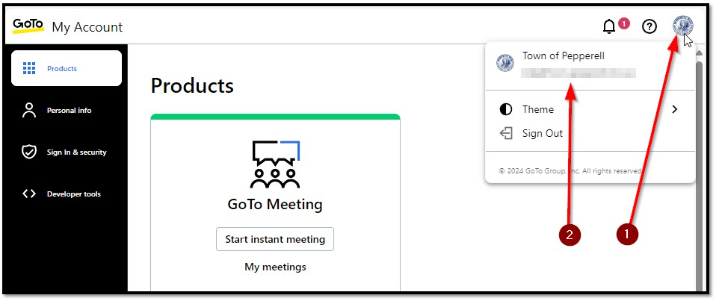
to sign out (if needed) click the Pepperell seal in the top right corner and choose the sign out option 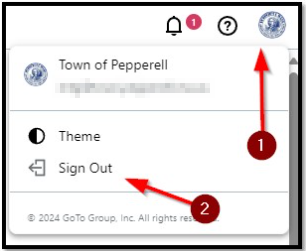
5. once you are in the correct account, click the My Meetings link
6. Ensure you have the upcoming meeting list selected, pick your meeting from the list and click start.
if you do NOT see your meeting listed then you are likely logged into the wrong account! See step 4 above. Do not continue by starting other meeting or creating a new one.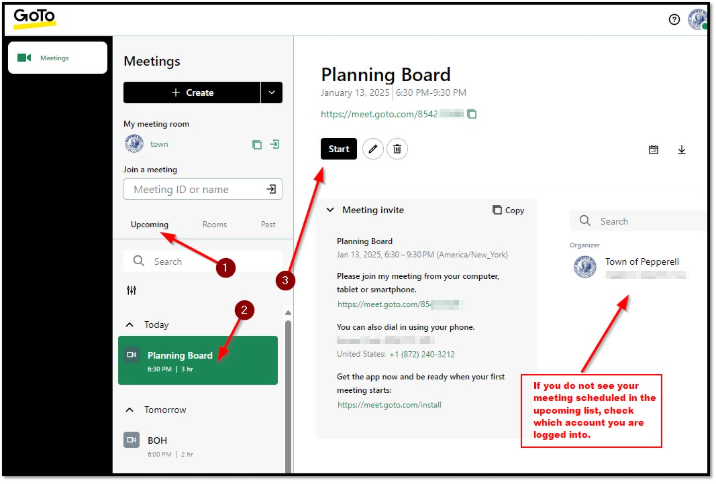
Was this article helpful?
That’s Great!
Thank you for your feedback
Sorry! We couldn't be helpful
Thank you for your feedback
Feedback sent
We appreciate your effort and will try to fix the article