This article is only valid for the members of the Benefits group.
benefits@town.pepperell.ma.us is a distribution group that several employees belong to. It allows them to receive emails which are sent to benefits@ and also gives them the ability to send emails as benefits@ email account.
First time you do it follow the steps below to configure it, afterwards the benefits@ option in your from field will be present and easy to use.
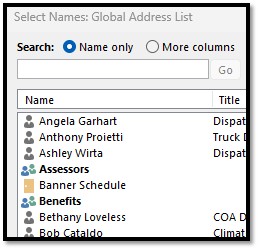
- Confirm that you see the benefits group in your address book , open new email -> click the TO button and see if “benefits” is in the list.
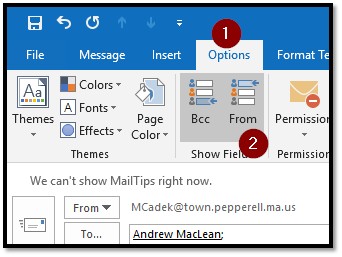
- Close that window, return to your new email message, click OPTIONS and choose the FROM field (just have to do this once, it will stay there for all future emails)
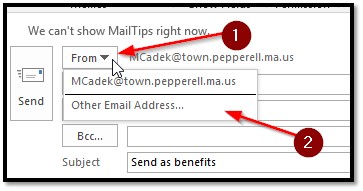
- Now that you have the FROM field in your new email, click it and choose Other Email Address..
- Do not type it in! it will not work if you do, you must click the FROM button and select benefits from the global address book, then click OK
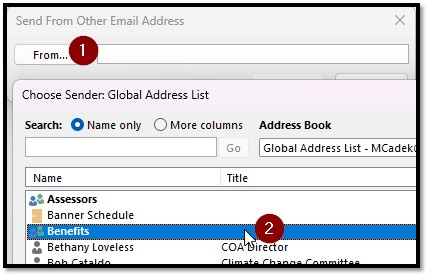
- Now you’ll see that it’s sending from benefits@ , finish your email and send it. (Send me or someone else a quick test message)
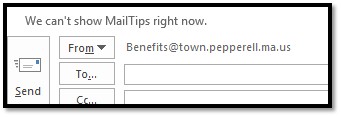
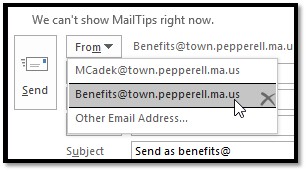
- Next time you wish to send as benefits@, just click the FROM dropdown in a new email and the benefits option will be there already.
Was this article helpful?
That’s Great!
Thank you for your feedback
Sorry! We couldn't be helpful
Thank you for your feedback
Feedback sent
We appreciate your effort and will try to fix the article