1. Start a New Meeting
Open Outlook.
Go to the Calendar view.
In the Home ribbon, select New Meeting (NOT New Appointment — that one doesn’t invite anyone).
2. Add Attendees
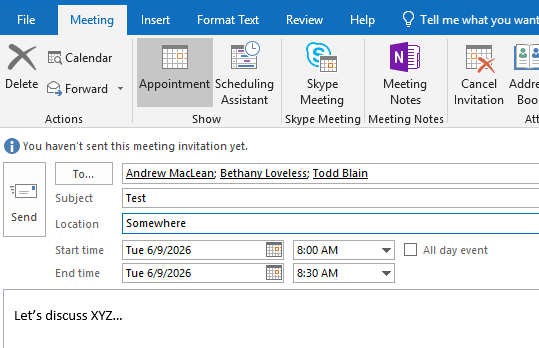
In the meeting window, click To…
Select people from the address list, or type email addresses directly into:
Required (must attend)
Optional (nice to have)
Resources (rooms/equipment, if applicable)
3. Add Meeting Details
Enter a Subject, Location, Start/End time, and any notes in the body.
How to Check Attendee Availability (Scheduling Assistant)
1. Open the Scheduling Assistant
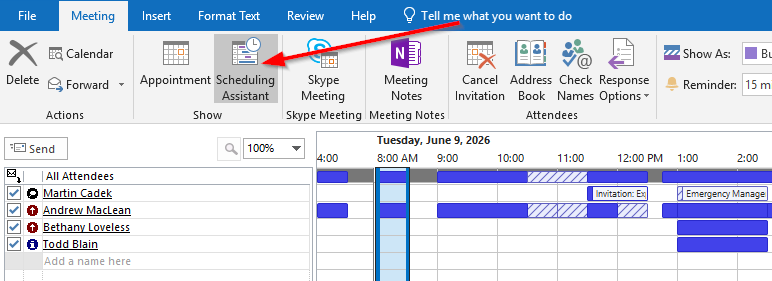
In the meeting window, click Scheduling Assistant on the ribbon.
2. Review Availability
You’ll see:
Each attendee listed on the left.
A timeline grid showing:
White = free
Blue = busy
Light blue = tentative
Purple = out of office
3. Send the Invitation
Once the time works for everyone, click Send.
Was this article helpful?
That’s Great!
Thank you for your feedback
Sorry! We couldn't be helpful
Thank you for your feedback
Feedback sent
We appreciate your effort and will try to fix the article