Log In
1) Visit https://town.pepperell.ma.us
2) Log in
Upload the packet to the Document Center
3) from top white bar choose MODULES -> DOCUMENT CENTER
4) Navigate to HOME -> DOCUMENTS -> DEPARTMENTS -> PLANNING -> PACKETS
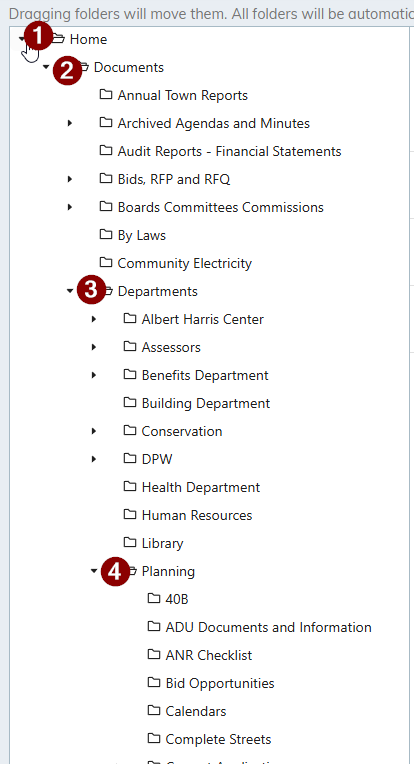
5) Make sure the PACKETS folder is selected, you can see the files in that folder in the right pane
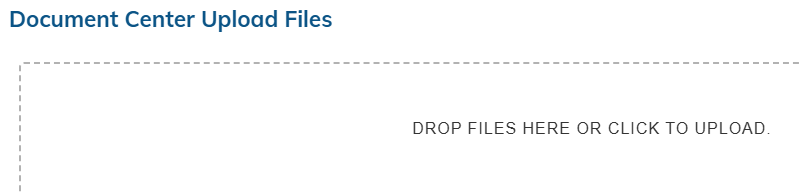
6) Click the ADD DOCUMENTS button up top

7) Click the Box to browse for the file that will be uploaded
note: avoid using special characters in file names, & , # etc.. or you may receive an error and the file will not upload
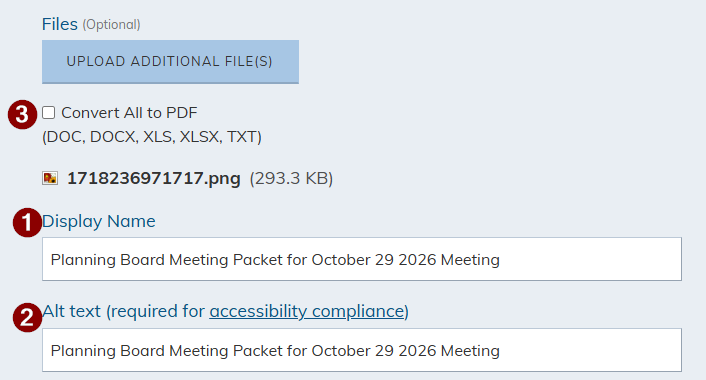
8) Ensure your file is named properly, display name and Alt text are required for accessibility and should be descriptive. "Meeting Packet 1" is not acceptable, "Planning Board Meeting Packet for October 29 2026 Meeting" is a more appropriate description.
note: if your document is not already a PDF then CIvicPlus can convert it for you (see #3 in screenshot below)
9) Click on SAVE AND PUBLISH

10) your file is now in the document center, and publicly available, but it is unlikely a visitor would find it there, it is therefore important you create a link to this file from a page where residents are much more likely to look for the meeting packets
Copy the link to the file
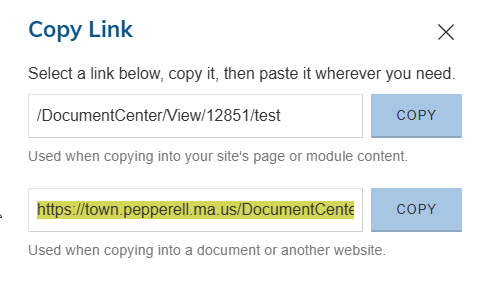
11) While still in the document center, click the ACTIONS "..." button next to the new uploaded and published file -> choose COPY LINK
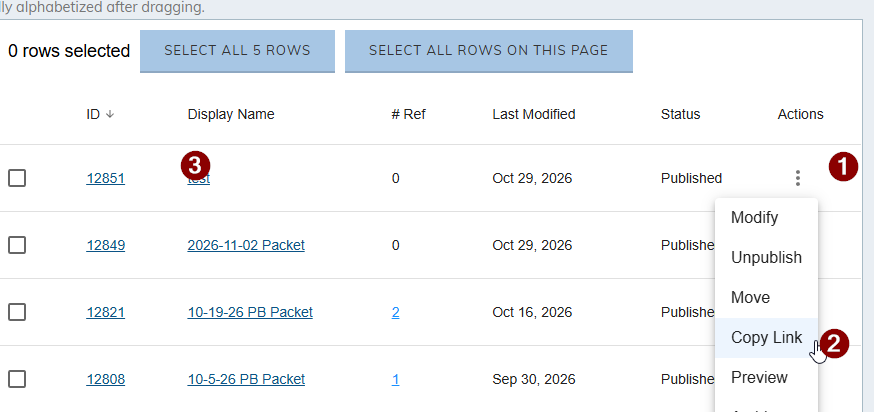
12) Copy either path that is shown, the short path is usable on Town pages, if you were to email or post the path on facebook you must copy the bottom full https:// path. Use the COPY button to copy the entire path
Create a link on the PB Meeting Packet page
13) Navigate to Departments -> Planning -> Meeting Packets page: Meeting Packets / Notices of Public Hearing | Pepperell, MA - Official Website
14) Click the LIVE EDIT button in top white bar to enable live editing

15) Click inside the text block that shows existing meeting packet links
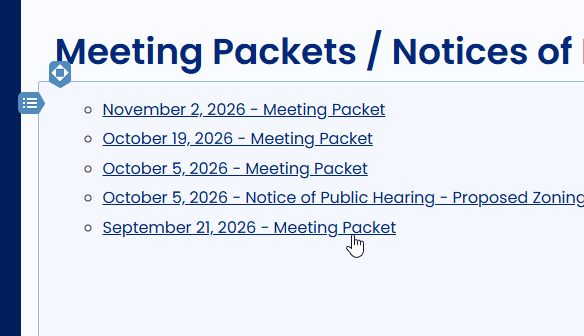
16) Click infront of the first word/link and press ENTER to create a new bulleted line (in this example click before N in November)
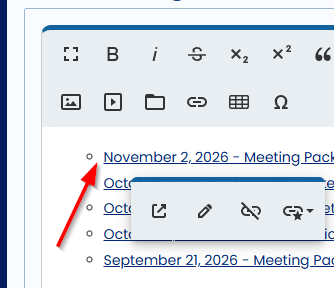
note: Organize this page however you wish, it is your content, this is just a suggestion.
17) Type the text for the link
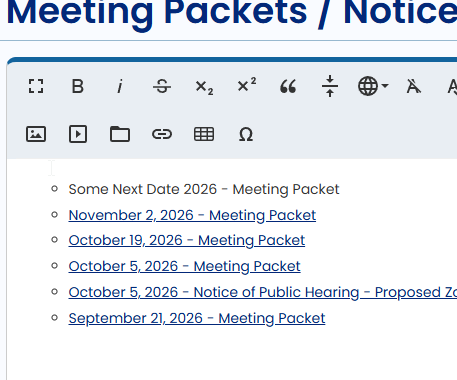
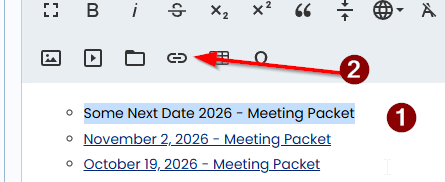
18) Highlight the text and click the link tool (2)
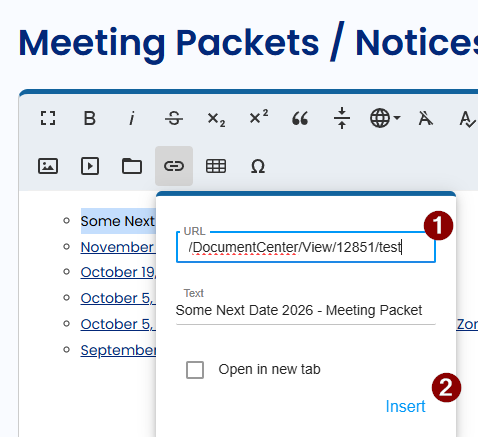
19) Paste the URL you copied earlier in step 12, click the INSERT link
20) You now have a link on the page, which directs to the uploaded PDF file, last thing is to click the yellow checkmark or click out of the edit box and click SAVE On top to save your changes.
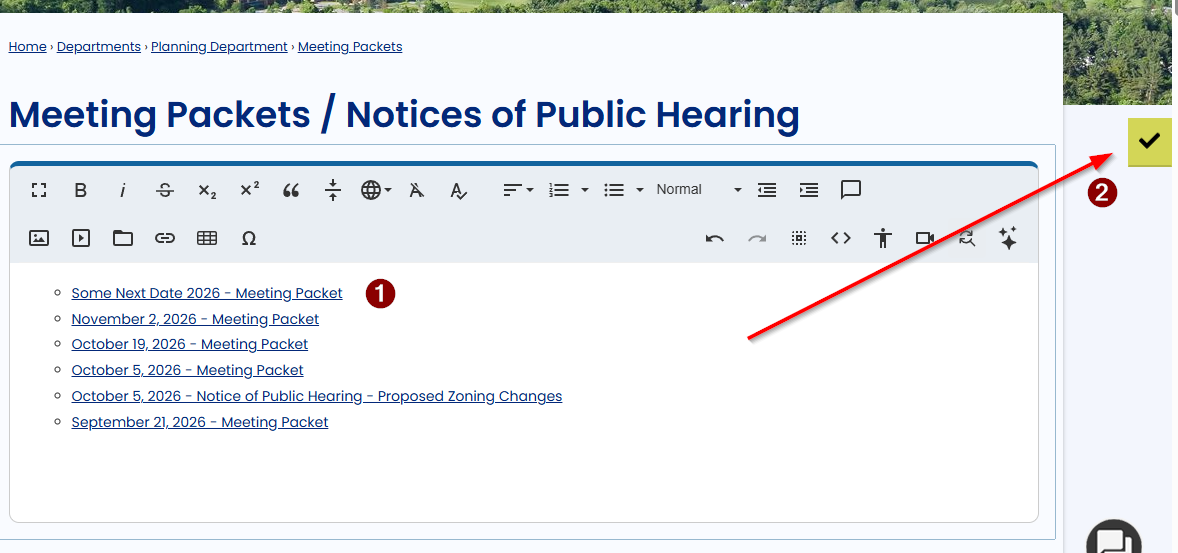

NOTE: Always test your work, click LIVE EDIT on top to disable live edit and ensure the changes are there.
Was this article helpful?
That’s Great!
Thank you for your feedback
Sorry! We couldn't be helpful
Thank you for your feedback
Feedback sent
We appreciate your effort and will try to fix the article